From Barcode to Digital Link in Minutes
A packaging manager has 500 products. Each one needs a new QR code that works at the checkout scanner AND gives customers product information when they scan with a phone. That's exactly what GS1 Digital Link does — and ElkQR generates them in minutes.
GS1 Digital Link QR codes encode your product identifiers (like GTINs) in a URL format. When a retail scanner reads it, it extracts the GTIN. When a customer scans it with their phone, it opens your product page. One QR code, two audiences.
Creating a GS1 QR Code
In your ElkQR dashboard, click Create QR Code and select GS1 Digital Link from the QR type options. You'll see the GS1 creation form with three main sections.
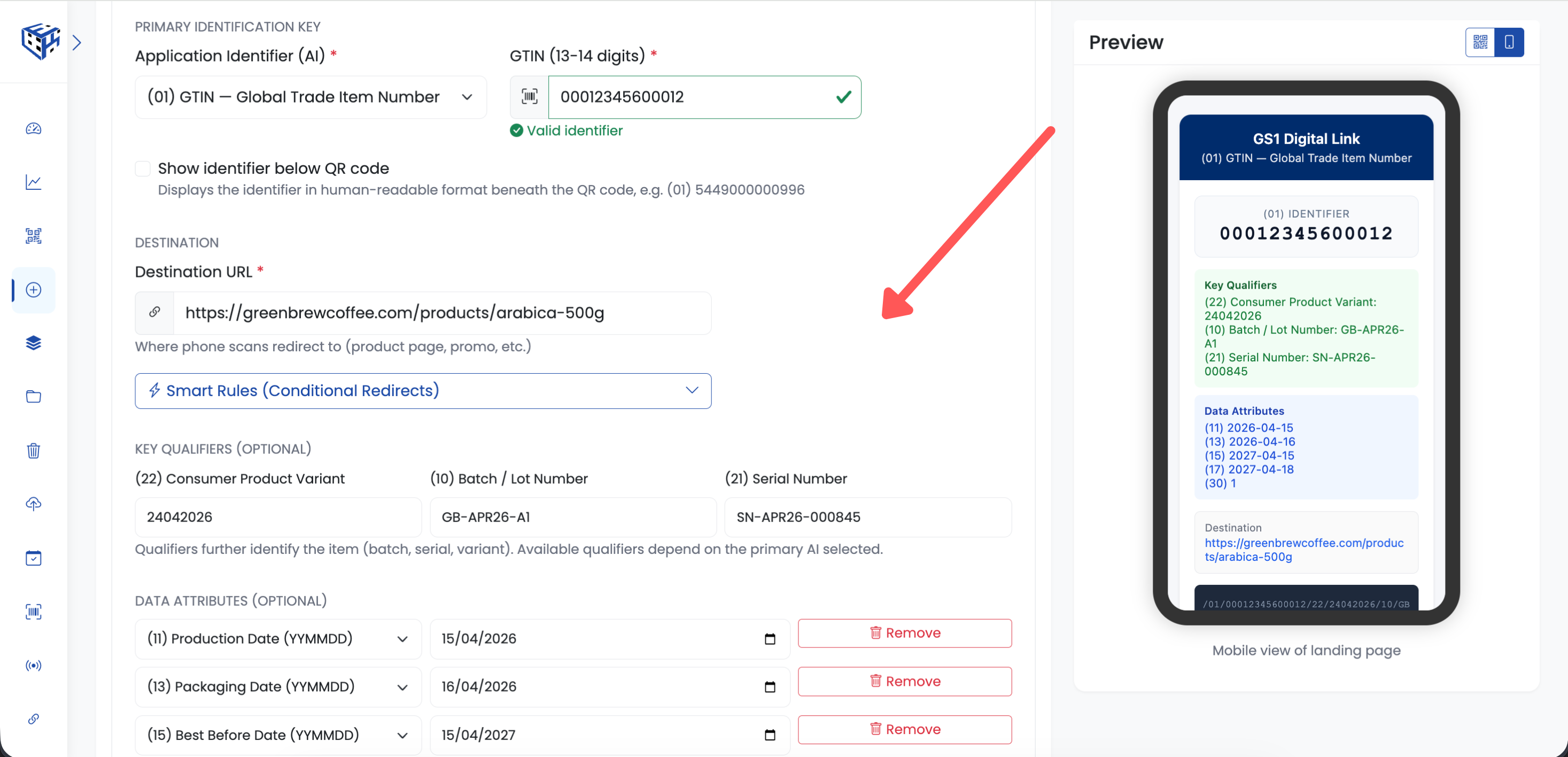
The GS1 Digital Link creation form with identifier type, key qualifiers, and data attributes
1. Primary Identifier
Choose your identifier type from the dropdown. GTIN is the most common — it's the number under the barcode on your product packaging.
| Identifier | Format | Used For |
|---|---|---|
| GTIN-8 | 8 digits | Small products, magazines |
| GTIN-12 | 12 digits | North American retail (UPC) |
| GTIN-13 | 13 digits | International retail (EAN) |
| GTIN-14 | 14 digits | Outer packaging, cases |
| SSCC | 18 digits | Shipping containers, pallets |
| GLN | 13 digits | Locations (warehouses, stores) |
Enter your identifier number. ElkQR validates the check digit automatically — if there's an error, you'll see a message before the QR code is generated.
2. Key Qualifiers (Optional)
Key qualifiers make each GS1 Digital Link unique beyond the primary identifier. Two products can share the same GTIN but have different batch numbers or serial numbers.
| Qualifier | Description | Example |
|---|---|---|
| Batch/Lot | Production batch number | LOT2024-A1 |
| Serial Number | Unique item serial | SN-00012345 |
| CPV | Consumer Product Variant | Flavor: Vanilla |
| TPX | Third Party Extension | Custom data |
Tip
For most products, Batch/Lot and Serial Number are the most useful qualifiers. They enable item-level traceability.
3. Data Attributes (Optional)
Data attributes encode product information directly in the QR code URL. This data is available to any system that scans the code.
| Attribute | What It Stores |
|---|---|
| Production Date | When the product was manufactured |
| Expiry Date | Best before or use-by date |
| Net Weight (kg) | Product weight in kilograms |
| Net Volume (L) | Product volume in liters |
| Price | Suggested retail price |
| Count of Items | Number of items in a pack |
The 1D Barcode Below
ElkQR can generate a 1D barcode (EAN-13 or Code 128) below the GS1 QR code when enabled. This is essential during the transition period — legacy scanners that don't support 2D codes can still read the 1D barcode underneath. Both appear on the same label, so your packaging is compliant with current and future standards.
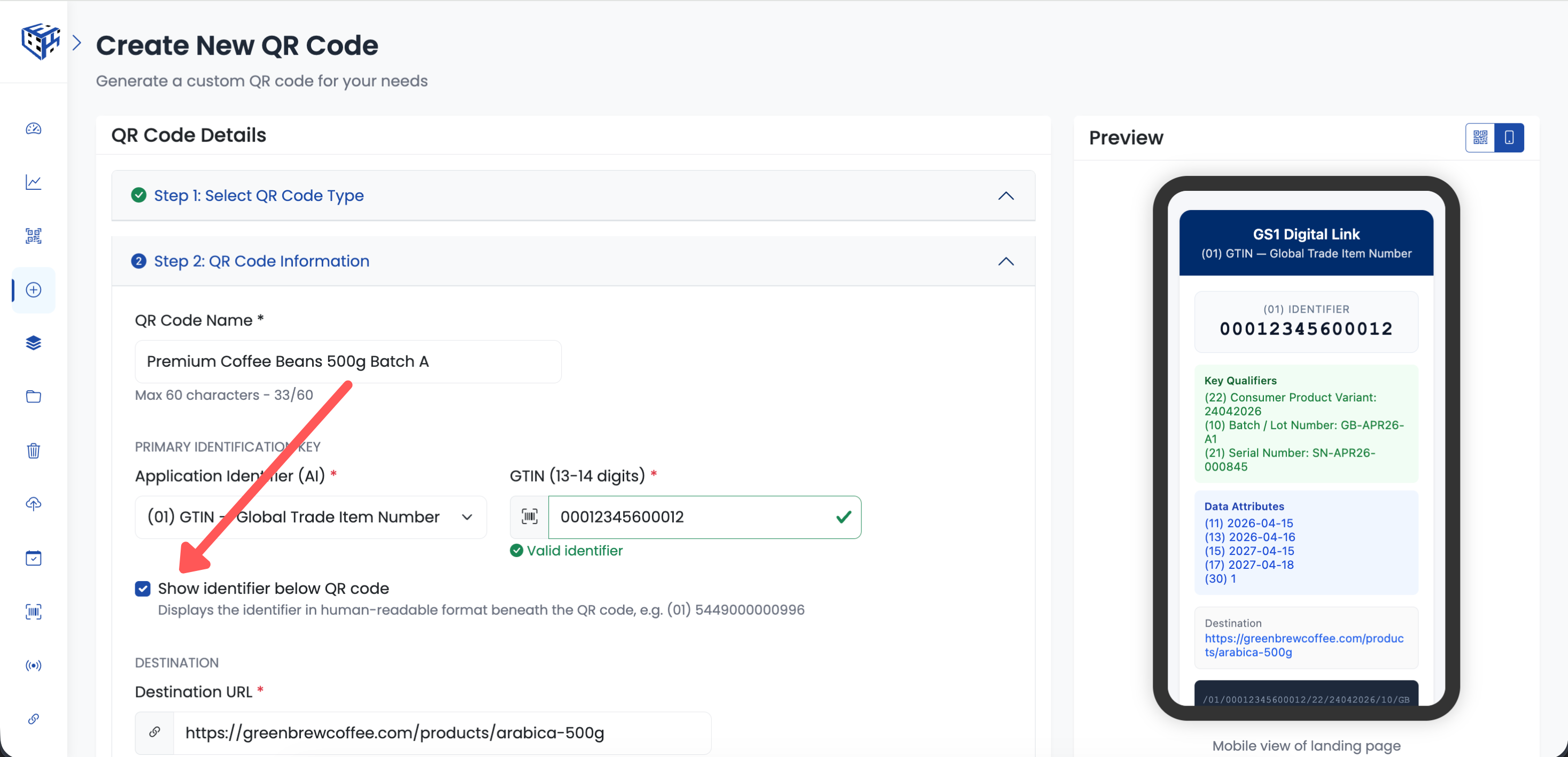
A GS1 Digital Link QR code with the optional 1D barcode displayed below it
Downloading and Printing
Once generated, download your GS1 QR code in PNG, JPG, WebP, or SVG format at sizes up to 4096px. For bulk printing, use the Print Labels feature to generate A4 PDF label sheets in 2x3, 3x4, 4x4, or 4x5 grid layouts.
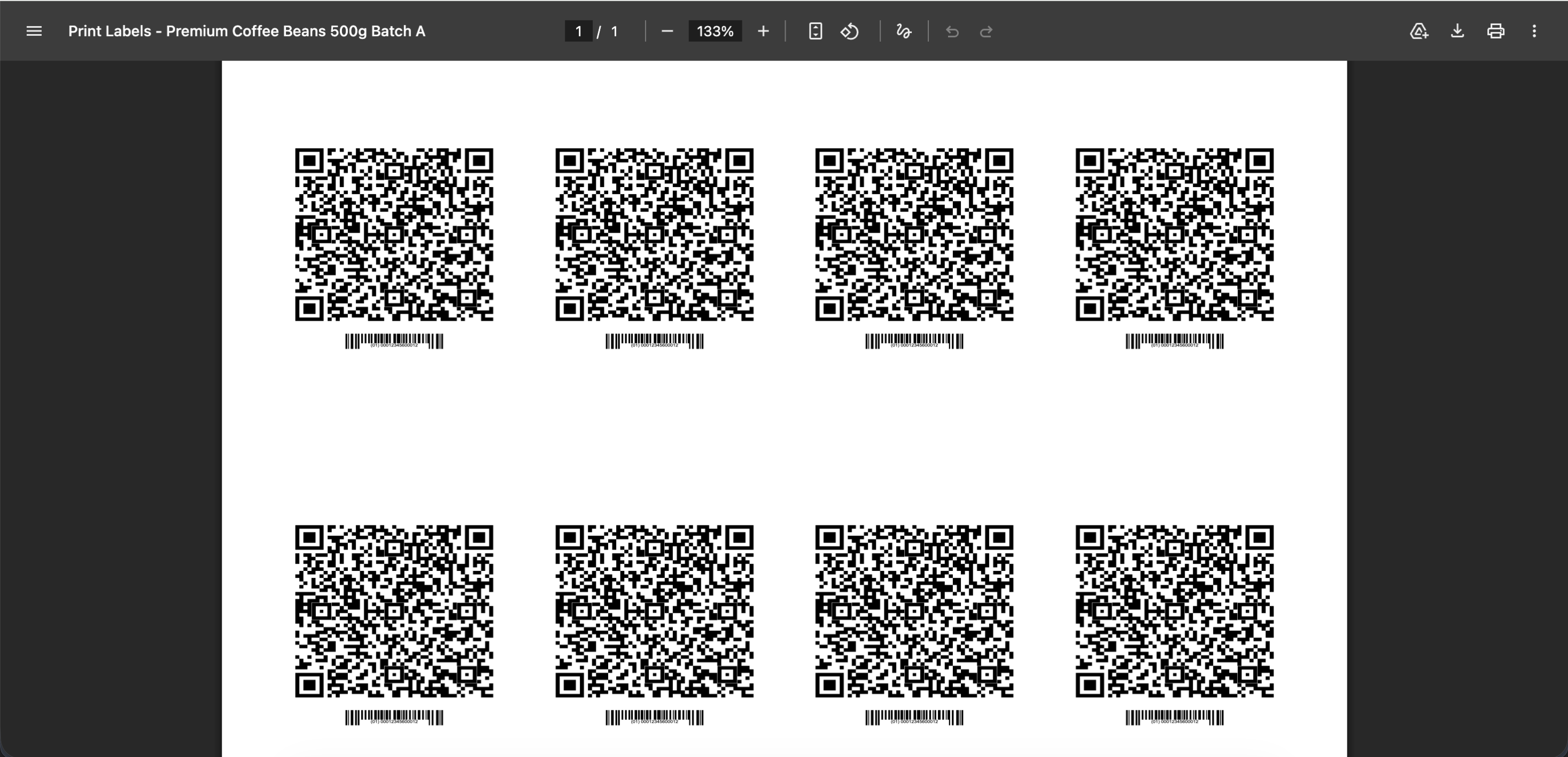
Download your GS1 QR code in multiple formats and sizes
Note
GS1 Digital Link QR codes use the standard square format for maximum scanner compatibility. Custom shapes are available for other QR code types.
Related Articles
Still facing difficulties?
Click here to contact our support team for assistance